Presets
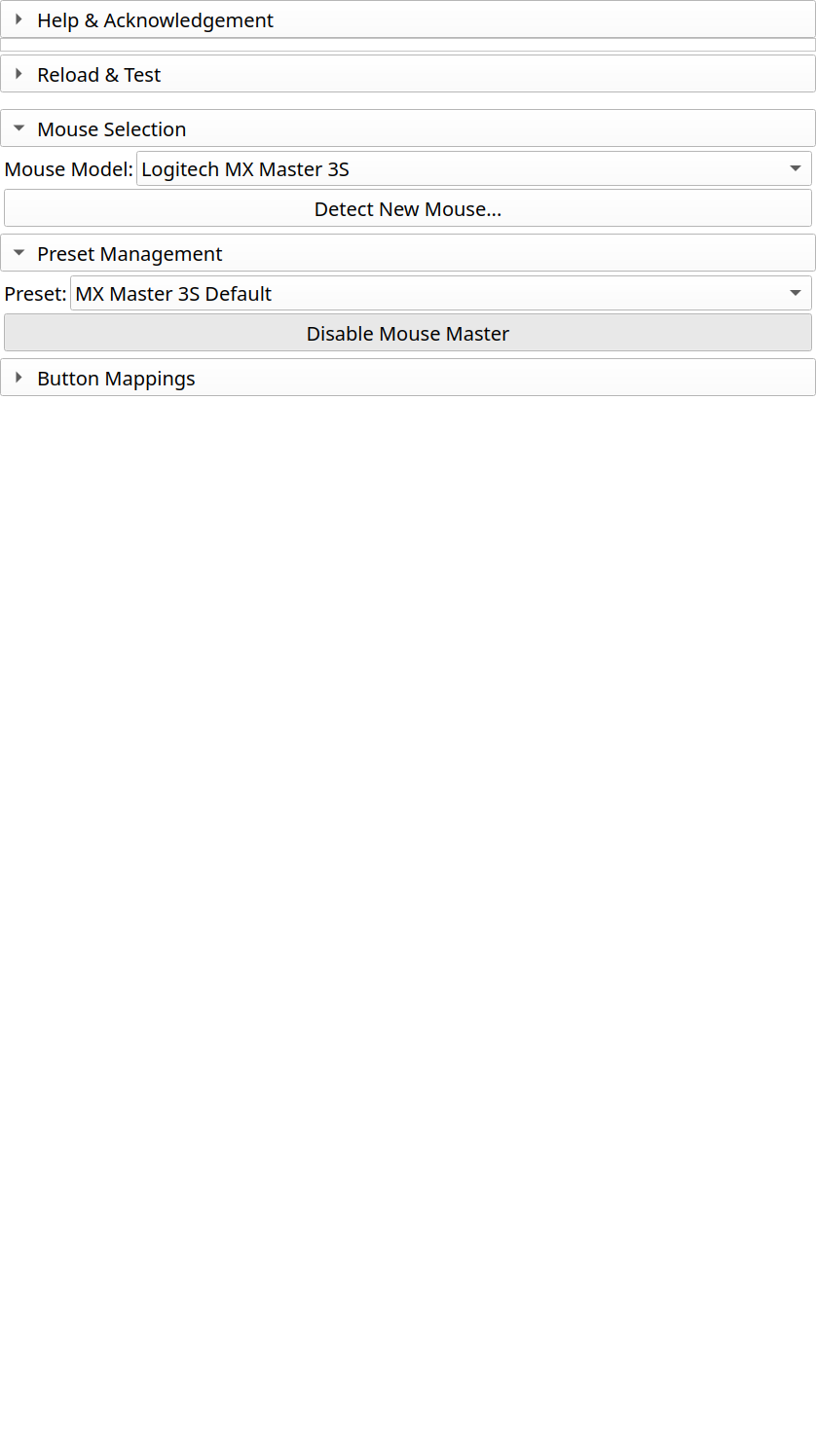
Presets save your complete button configuration for easy switching and sharing.
Understanding Presets
A preset contains:
Button-to-action mappings
Context-specific overrides (per-module bindings)
Target mouse profile
Metadata (name, description, author)
Preset Locations
- Built-in presets:
Installed with the extension, read-only.
- User presets:
Stored in your Slicer settings directory, editable.
Managing Presets
Creating a New Preset
Configure your button mappings
Click “Save As New Preset…”
Enter a name and optional description
Click Save
The preset is saved to your user presets directory.
Loading a Preset
Select the preset from the dropdown
Click “Load Preset”
Your button mappings update immediately
Editing a Preset
Load the preset
Modify button mappings as needed
Click “Save Preset” to overwrite, or “Save As…” for a new preset
Deleting a Preset
Select the preset
Click “Delete Preset”
Confirm deletion
Note
Built-in presets cannot be deleted, but you can save a modified copy.
Preset File Format
Presets are stored as JSON files:
{
  "id": "my_workflow",
  "name": "My Workflow",
  "version": "1.0",
  "mouseId": "logitech_mx_master_3s",
  "author": "Your Name",
  "mappings": {
    "back": {"action": "edit_undo"},
    "forward": {"action": "edit_redo"}
  },
  "contextMappings": {
    "SegmentEditor": {
      "back": {"action": "segment_previous"}
    }
  }
}
For detailed format documentation, see Preset Format.
Troubleshooting
Preset not loading:
Validate JSON syntax
Check
mouseIdmatches your selected mouseCheck Slicer console for error messages
Changes not saving:
Verify write permissions to settings directory
Try “Save As…” to a different location
Check available disk space
See Also
Button Mapping - Configure individual buttons
Context-Sensitive Bindings - Module-specific overrides
Preset Format - Preset format specification